Introduction to the Document Object Model (DOM)
Learning Outcome Guide
Section titled “Learning Outcome Guide”At the end of this class, you should be able to…
- Explain the role of the DOM in web development
- Select and manipulate HTML elements using JavaScript
- Modify content, attributes, and styles through DOM methods.
- Define and call functions to perform small tasks and promote reuse of code.
The focus of this lesson is on selecting elements, altering text and HTML, and basic function definition and use.
Demonstrate selection first and log the results to the console so students can see the Node references.
Emphasize prefer
textContentfor user-provided data.Show the difference visually when swapping
textContentvsinnerHTMLand when applying inline styles.Students must read chapter 9 [The BOM to the end] of JSFBP
Coding Demo
Section titled “Coding Demo”In-Class Demo Jan 2026 term
To run the coding demo, you need to have your Student Workbook open in Visual Studio Code.
-
Open the terminal window and paste in the following.
Run from the root of your repository pnpm dlx tiged --disable-cache --force DG-InClass/SDEV-1150-A04-Jan-2026/sk/lesson-05 ./src/lesson-05 -
Walk through the steps in the
ReadMe.mdof the new lesson.
Walkthrough
Section titled “Walkthrough”Install dependencies and run the dev server
Section titled “Install dependencies and run the dev server”-
Extract the starter zip to
lesson-05 -
Move into the
lesson-05/directory:
cd lesson-05- Install the necessary dependencies:
npm installor
npm i- Run the dev server with the
devscript:
npm run dev- Open the provided development server URL in your browser
- You should see the default render for the vite project.
- Use this as the base for today’s examples.
Instructor Demo and Student Exercise
Section titled “Instructor Demo and Student Exercise”Complete the demo along with your instructor.
Selecting elements
Section titled “Selecting elements”// Select elements from the page using CSS selectorsconst titleEl = document.querySelector('#page-title');const taglineEl = document.querySelector('.tagline');const heroImg = document.querySelector('#hero-img');const heroCaption = document.querySelector('#hero-caption');const dynamicBox = document.querySelector('#dynamic-box');const footerNote = document.querySelector('#footer-note');
console.log('Selected elements:', { titleEl, taglineEl, heroImg, heroCaption, dynamicBox, footerNote });textContent vs innerHTML
Section titled “textContent vs innerHTML”// When you need plain text use textContenttitleEl.textContent = 'DOM: Your JavaScript Window into Page Structure';
// innerHTML can insert markup — use carefully to avoid injecting untrusted contentdynamicBox.innerHTML = ` <p class="desc"> This block was injected with <em>innerHTML</em>. It can include <strong>markup</strong>. </p>`;
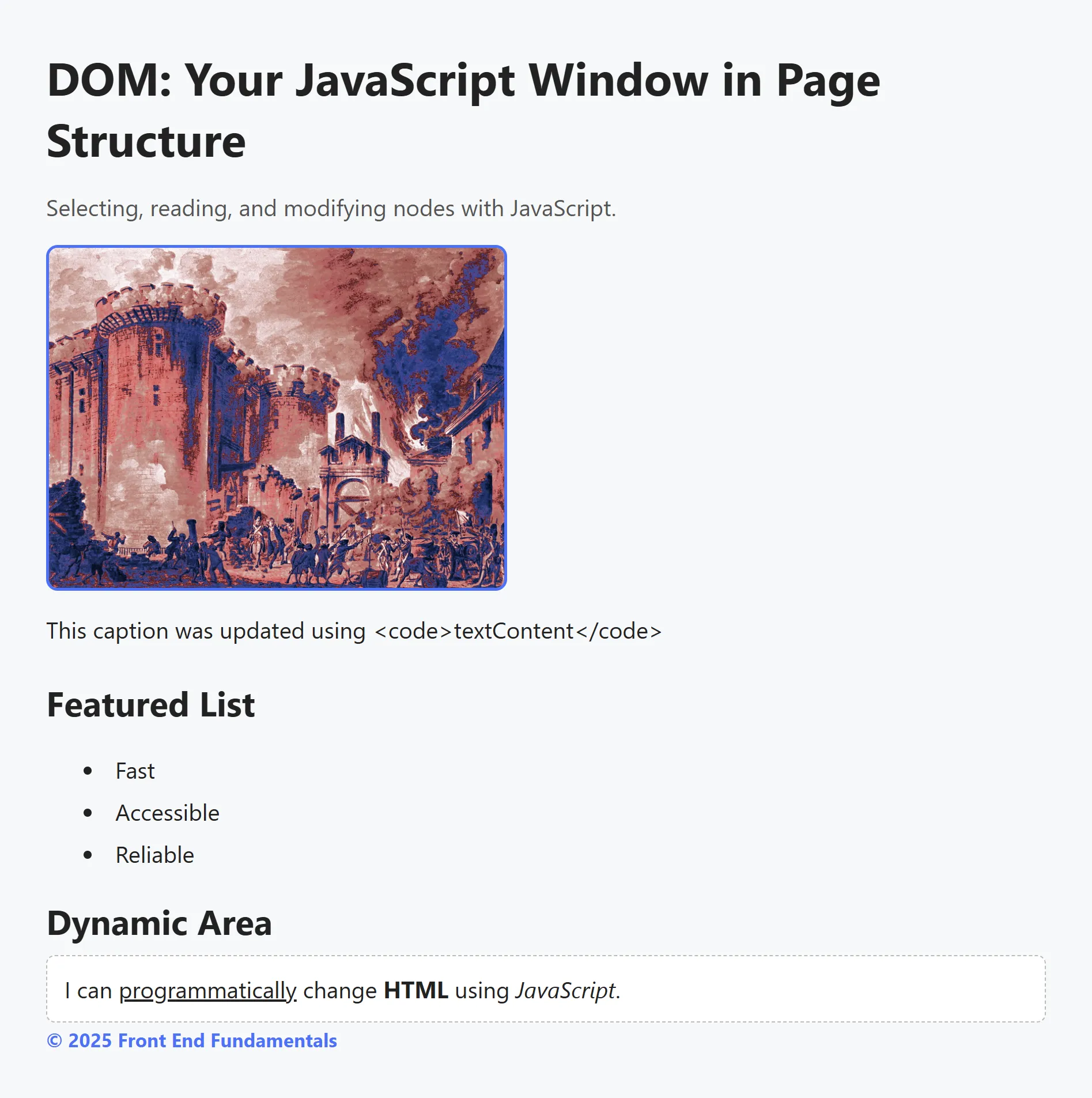
// When you only need text (no markup), prefer textContent over innerText (marginal performance gain)heroCaption.textContent = 'This caption was updated using textContent.';Attributes and inline styles
Section titled “Attributes and inline styles”// Set attributes and inline stylesheroImg.setAttribute('alt', 'A replaceable sample image');heroImg.style.borderColor = '#0d6efd';Helper functions for reuse
Section titled “Helper functions for reuse”function updateText(selector, text) { const el = document.querySelector(selector); if (!el) { return console.warn('No element found for', selector); } el.textContent = text;}
function updateHTML(selector, html) { const el = document.querySelector(selector); if (!el) { return console.warn('No element found for', selector); } el.innerHTML = html;}Call helpers to perform repeated tasks
Section titled “Call helpers to perform repeated tasks”updateText('.tagline', 'Selecting, reading, and modifying nodes with JavaScript.');updateHTML('#dynamic-box', ` <p class="desc"> Replaced again via <code>updateHTML()</code>. Notice how we can inject different markup here. </p>`);Class toggle and entity rendering
Section titled “Class toggle and entity rendering”footerNote.classList.add('footer-strong');// Use innerHTML to render entities like © correctlyfooterNote.innerHTML = '© 2025 Front End Fundamentals';// Try swapping textContent in for innerHTML above and see what happensPush to your GitHub workbook repo
Section titled “Push to your GitHub workbook repo”Once you’re done making your own custom updates to the project, stage your files, commit your work, and push to the remote repository.
- Open a terminal in VS Code
- Stage all updated and created files:
git add .- Commit the changes:
git commit -m 'Lesson 05 Example'- Push your changes to the remote workbook repository:
git push origin main