TypeScript Quickstart

The [intro to JavaScript/] (/CPSC-1520/tutorials/0012/) focused on working with simple information through the use of variables, assignment operators, and a little bit of arithmetic operations. One of the key parts was the observation that there exists different kinds of data (information). We call these data types.
We encountered strings and numbers, and we learned that variables in JavaScript have their data type determined by the value stored in the variables. We say that the data type is associated with the values themselves. Variables are just “containers” to hold the information so we can use and manipulate it later on.
TypeScript is like a “wrapper” for JavaScript so that we can put data type constraints on our variables. Before we jump into TypeScript, let’s think about how JavaScript works with regard to data types.
The Importance of Data Types
Section titled “The Importance of Data Types”JavaScript is a dynamically typed programming language. The characteristic of a variable’s data type changing based on whatever we choose to store in the variable is what we mean when we say JavaScript is “dynamically typed”.
That presents us with an interesting challenge. I can have a variable hold a number, but later replace the number with a string or other data type (we’ll see those other data types later). If I, as a programmer, forget what it’s holding, then I could get unexpected results. Let’s look at an example.
Consider we have a variable called amount. We’re interested in representing a monetary value (dollars and cents). To do math, we might have code like the following.
amount = quantity * price; // e.g.: 10 * 1.56, producing 15.6Suppose we write some code to make the amount have the correct number of digits.
amount = amount.toFixed(2); // e.g.: changing 15.6 to '15.60'console.log(`The subtotal is $ ${amount}`);But what happens if we try to get back to some arithmetic with that variable?
tax = amount * 0.05; // 5% sales taxamount = amount + tax; // the final totalCan you guess what will be produced? Let’s break down what happens.
-
Since
amountholds a string ('15.60') and we’re trying to multiply it by a number (0.05), JavaScript does an automatic conversion of the string value (not the variable) in order to do multiplication.Automatic Type Conversion '15.60' * 0.05\_____/ \__/| |string number| |15.60 |\___/ |number * number <== Now we can do math!| |15.60 * 0.05\ /\ /\ /\ /0.78\__/number -
After computing the arithmetic expression, the value can now be stored into
tax.Adding in sales tax tax = amount * 0.05; // 5% sales tax on 15.60 is 0.78amount = amount + tax; // but what happens here?? -
The next line of code does addition. But, the data type of
amountis still a string. And when automatic type conversion is done for addition, the rules change. Addition, with strings, is always concatenation!Automatic Type Conversion '15.60' + 0.78\_____/ \__/| |string number| || '0.78'| \____/string + string <== Now we can do concatenation!| |'15.60' + '0.78'\ /\ /\ /\ /'15.600.78'\_________/string -
Challenge question: What would the result be if we tried to do the following as the next step?
Thought experiment tax = 15.60 - amount; // What type conversion is performed for subtraction?
Why TypeScript
Section titled “Why TypeScript”Many programming languages such as C# and Java are known as “type-safe” languages. In those languages, when you declare a variable you identify the data type with that variable. As such, you can only store data of that type in that variable, and any attempt to put a different type of data in the variable causes a compiler error.
string result;result = "The answer is 42"; // acceptedresult = 42; // COMPILER ERROR!“Type safety” in a programming language helps to prevent a whole set of problems from appearing when your code runs. But creating a type-safe language isn’t easy, and there can be some benefits in a dynamically typed language. JavaScript is dynamically typed.
But what if we could add type safety to JavaScript? That was the main goal of TypeScript — the ability to constrain our variables to a specific type and get a compile-time warning when we’re being “sloppy” in how we work with our data.
TypeScript is a “super-set” of JavaScript. Any and all JavaScript code runs as-is in a TypeScript file. That means JavaScript is always compatible with TypeScript.
In the following small tutorials, we’ll explore what TypeScript adds to JavaScript.
In this multi-part tutorial, we’ll build a short TypeScript file to highlight the following key aspects which undergird how TypeScript works.
- The roles of variables, values and data types
- Performing simple math calculations and string manipulations
- Write messages to a console environment
As you go through this tutorial, you may want to pause at points to read the related articles I link to on this site. I’ll drop a few links in this tutorial, but for a big picture of why we have and need TypeScript, check out the following and then return to begin this tutorial.
Why TypeScript - The Big PictureLearning Outcome Guide
At the end of this tutorial, you should be able to:
- Execute TypeScript files with Node in watch mode within a terminal window
- Display feedback in the terminal window using
console.log() - Declare and Initialize varibles
- Recognize literal values within a TypeScript file
- Construct strings using template strings and placeholders
- Perform simple mathematical calculations on numeric values
- Distinguish between values and variables
- Identify primitive data types using
typeof - Convert numeric values to strings with a fixed number of digits precision
- Identify and correct simple errors when writing TypeScript code
Up and Running
Section titled “Up and Running”TypeScript is typically associated with browsers and websites. That’s the way it should be. But you may be surprised to learn that TypeScript can be used on its own, apart from the web. That capability came about largely due to Node - a standalone TypeScript runtime.
We’re going to use that runtime to execute a simple TypeScript file. Within that file, we’ll write code and observe the output.
-
Launch Visual Studio Code (VS Code). From the menubar, select File -> Open Folder… and create an empty folder for this quickstart. You can name the folder anything you want, but if you want a suggestion, call it
JS-Quickstart. -
Open a separate terminal by pressing Ctrl + Shift + c. Because you did this from within VS Code, the path in the terminal should match the folder you’ve just opened.
-
Position the terminal and VS Code side-by-side, so that you can observe what happens as you continue this tutorial.
-
In VS Code, choose File -> New File… and name it
app.js. Save it in the folder you’ve just created. This is a TypeScript file, as noted by the file extension.js. -
Type the following code in the file.
app.js console.log('Hello World!'); -
Switch to the terminal, and run the following command. This will run your
app.jsfile in Node and re-run it every time we save changes.Terminal Window node --watch app.jsYou should see the message “Hello World” in the terminal.
-
Return to VS Code and change the text inside the quotes from
'Hello World!'to'My app.js has loaded.'.You should see the script has reloaded in the terminal with the new message on the screen.
It’s one line of code, but it demonstrates the two parts of what a computer program is: A set of instructions, and information.
The console object is a reference to the terminal where our program is running inside of Node. The .log() part of our code is a function call used to display a line of text onto that terminal. The information between the parenthesis - 'My app.js has loaded.' - is a hard-coded string value. Lastly, the semicolon at the end - ; - acts like punctionation that indicates the end of our instruction to the computer.
Take a moment to read the following short article, and then come back to this page for the next part of this tutorial.
TypeScript As A LanguageWorking With Data
Section titled “Working With Data”“A computer program is a set of instructions for manipulating information.” That’s my favorite definition because it encapsulates the two key ingredients of every computer program.
- A set of Instructions - Statements that tell the computer what to do in a step-by-step manner.
- Information - Data that we want to manipulate and re-shape.
In this part, we’ll include some data in our program and make the computer re-shape it to our will. Along the way we will discover that data comes in two basic forms: Simple and Complex.
-
Continue editing the
app.jsfile by adding in another line of code.app.js console.log('My app.js has loaded');console.log();The second call to the
console.log()function will output an empty line (because nothing was placed between the parenthesis). -
Add four more lines of code after the last one.
app.js // Variable declaration vs. initializationlet quantity = 10;let price = 5.95;let message;The first line is a [single-line comment/] (/CPSC-1520/reference/0030/) in TypeScript. These start with two slashes (
//) and are useful for making notes for ourselves as developers.The remaining lines create three [variables/] (/CPSC-1520/reference/0020/#variable-declarations). The TypeScript keyword
letis used to create (or declare) a variable. Programmers use variables to act as “containers” that can hold information.Each of these three lines are program statements. A program statement is a complete instruction for the computer to carry out.
The first two are initialization statements because we are putting values into each of the variables (
quantityandprice) at the time we declare the variables. The last line is just a declaration statement because we are declaring a name for our variable -message- but we haven’t defined what information is stored in that variable (yet). -
The code in the last step didn’t output anything to the terminal. Let’s add another comment and two more lines of code.
app.js // Assignment statementmessage = 'The following is a series of demos';console.log(message);Here, we are writing an assignment statement that places (assigns) a value into the
messagevarible. The equal sign (=) is an assignment operator telling the computer to store the value from the right-hand side into the variable on the left-hand side. The last line simply sends the contents of that variable into theconsole.log()function so that the value is displayed on the screen. -
We can do more with the variables that hold our values. Consider the following code which uses a [template string/] (/CPSC-1520/reference/0020/#template-strings) to embed the values of two variables into a line of text. Add these to your existing code. Be sure to use a backtick - ` - instead of a single quote - ’ - as you type these lines of code.
app.js // Template strings and placeholdersmessage = `The price is ${price} and the quantity is ${quantity}.`;console.log(message);Notice how this assignment assignment statement replaces the old value inside the
messagevariable. When we log the message to the terminal, its contents are displayed on the screen. -
Let’s perform some math. Here’s more code to add to the end of our script.
app.js // Arithmetic operators for numberslet total = quantity * price;Our initialization statement for
totalinvolves an arithmetic operation (multiplication) to obtain the value. Note how the assignment operator (=) works by taking the result of the calculation on the right-hand side to store it in the new variabletotal. That’s an important point: The arithmetic expression must be computed before the assignment. That’s because the assignment operator can only store a single “thing” (or value) into a variable. -
Let’s output another message. This time, we’ll use the
+operator to concatenate or join together two values.app.js // Arithmetic operator for strings (string concatenation)message = 'The total amount is $ ' + total;console.log(message);You should see the following new output. You might have expected a value of
59.50instead of59.5. We’ll address that shortly.Terminal window The total amount is $ 59.5The main thing I want you to see is how the output was created. When working with strings, the
+operator works differently than it does with numbers. Instead of arithmetic, it joins the two items as text to produce a longer string. -
That raises an important aspect of TypeScript. We have variables that contain different kinds of data. We refer to those “kinds” as data types. For example,
messageholds textual information whiletotalholds numeric information.There’s a keyword in TypeScript that can tell us the data type of our variables:
typeof. Let’s use it to discover what data types we currently have inmessageandtotal.app.js // Data Typesconsole.log(`total is a ${typeof total}`);console.log(`message is a ${typeof message}`);You should see this output.
Terminal window total is a numbermessage is a stringThe “string” and “number” data types represent primitive data types built into TypeScript. This distinction is important because TypeScript uses different rules for manipulating different data types (as we saw in the
+operator we used earlier). -
Recall how the calculated
totalwas displayed earlier. The value was shown as59.5in the terminal. But our intention was for this to be a monetary value, so you might have expected to see59.50instead.When numeric values are concatenated onto our strings, the trailing zeros after the decimal point are ignored. We can fix that by converting our number to a string before we concatenate.
app.js // Type conversions: Numbers to Stringslet amount = total.toFixed(2);console.log(`The total amount is $ ${amount}`);The
.toFixed()function can be applied to any numeric data type to convert it to a string with a fixed number of digits. Our code above ensures that we have exactly two digits after the decimal point.app.js message = `I used .toFixed(2) to convert a ${typeof total} into a ${typeof amount}`;console.log(message); -
Once last point to make in this tutorial. All of the code we are writing is organized as a simple sequence of instructions. Each instruction is performed one after the other. A change in a variable’s value will not alter some earlier calculation.
Let’s demonstrate that point with some more code. The new value for
messageis a long one, but keep it all as a single line of code. (Sorry for the horizontal scrolling…)app.js // Simple Sequencequantity = 20;message = `\n\tChanging quantity to ${quantity} does not cause previous calculations to be re-evaluated.\n\tTotal is still ${total} and amount is still ${amount}.`;console.log(message);As a bonus, I threw in some escape characters to liven up our output. The
\nrepresents a newline character while the\trepresents a tab character. Both of these are considered whitespace characters.
We’ve taken big steps in learning how TypeScript works. Review the article below before moving on with the next section.
How TypeScript WorksCoping With Errors
Section titled “Coping With Errors”If you’ve tried the code above, you might have occasionally hit an error or two by making a mistake in what you’ve typed. Hopefully you solved it by comparing what you typed with what was in the tutorial steps. That’s not unusual as you are learning a new computer language. It’s helpful to discover what kinds of errors you might run into. The final part of this tutorial explores a couple of things to watch out for.
We’re going to put some deliberate errors in our code to see how TypeScript responds. We’ll also fix those errors to get the result we actually want.
Syntax Errors
Section titled “Syntax Errors”
Sometimes our code just crashes. When that happens, TypeScript will report that it doesn’t understand our code.
These are called syntax errors. This happens when TypeScript can’t “understand” the instruction because our code isn’t following the rules of the language. (See [TypeScript As A Language/] (/CPSC-1520/explanations/0020/) for a refresher on the importance of grammar.)
Let’s write some broken code to illustrate this. Don’t be alarmed - we’ll fix the problems we create along the way.
-
I made a comment about simple sequence in the last edit to our script file. This presents us with an important consideration:
In order to use a variable in some calculation, we must declare the variable beforehand.
To demonstrate this, try adding the following (broken) code to the end of your existing
app.jsfile.app.js // More Simple Sequencetotal = total - discount;let discount = 2.15;In the terminal, we’ll see the following error message:
Terminal window total = total - discount;^ReferenceError: Cannot access 'discount' before initializationOur mistake was declaring and initializing
discountafter we attempted to use it in our calculation. We also would see this error if we hadn’t declared the variable at all.To fix this, we would need to place our initialization statement before we attempt to use it in our calculation. Re-order the lines of code to match the following.
app.js // More Simple Sequencelet discount = 2.15;total = total - discount; -
Another important consideration is that we can’t re-declare an existing variable. Change your code to add the extra lines highlighted in green.
app.js // More Simple Sequencelet discount = 2.15;total = total - discount;let message = 'A discount was applied to your total.';console.log(message);Now we get a different error - one that tells us that the
messagevariable has already been declared earlier in our code.Terminal window let message = 'A discount was applied to your total.';^SyntaxError: Identifier 'message' has already been declaredThe fix in this case is to remove the
letkeyword.app.js let -
Here’s another common mistake you might make. TypeScript is a case-sensitive programming languge, meaning that there’s a big difference in upper and lower case characters.
Try adding this line of code.
app.js message = `The new total is $ ${Total}`;console.log(message);You will see the following error message.
Terminal window message = `The new total is $ ${Total}`;^ReferenceError: Total is not definedThe problem is that we capitalized the variable for the total price. It should be
total(with a lower-caset), because that is how we originally declared the variable earlier in our program. TypeScript reads this and discovers thatTotalhas never been declared (or defined) as a variable.Again, the fix is easy: correct the spelling.
app.js message = `The new total is $ ${total}`;console.log(message);
These kinds of syntax errors are usually easier to spot because TypeScript will report that it couldn’t execute our code. As we’ll see in the next section, other errors are more subtle and challenging to detect.
Logic Errors
Section titled “Logic Errors”
The next errors we’ll create are not due to incorrect grammar or syntax. Instead, they fall under a category know as logic errors. In a logic error, our code “runs”, but we don’t get the results we desired. Usually, this is just a typographical error (or typo).
-
Try adding these lines that give details on the discount we applied above.
app.js message = 'The discount is $ ${discount}.';console.log(message);Instead of seeing the value of
discountin the final line on the terminal, we’re seeing the placeholder.Terminal window The discount is $ ${discount}.Our problem is that we intended to use a template string, but we used single quotes instead of backticks (
`). Here’s the fix.app.js message = 'The discount is $ ${discount}.';message = `The discount is $ ${discount}.`;console.log(message); -
Let’s look at another common typo (again, involving template strings). Add the following lines for another message.
app.js message = `The original price was $ {amount}`;console.log(message);We were careful to use backticks for our template string. But we’re again seeing the variable name instead of it’s value.
Terminal window The original price was $ {amount}That’s because we used our placeholder incorrectly. Template strings use a
$immediately before the curly braces. Let’s fix our code.app.js message = `The original price was$ {amount}`;message = `The original price was ${amount}`;console.log(message);Now we get the following result.
Terminal window The original price was 59.50That’s better, but we also wanted to see the dollar sign (to indicate that we’re talking about money). Lets do one last tweak of our code.
app.js message = `The original price was ${amount}`;message = `The original price was $ ${amount}`;console.log(message);It’s a subtle change, but one that produces a cleaner result. 🎉
Terminal window The original price was $ 59.50
Writing code in any programming language requires attention to detail. Don’t worry if you make a mistake when you follow these tutorials. Attention to detail is a skill that you can develop over time. If something isn’t working as expected, take a long, slow look at what you’ve typed. It might be a simple typo, but you’ll grow more experienced in recognizing (and fixing) these as time goes on.
Conclusion
Section titled “Conclusion”In this quickstart, we’ve created code that manipulates and displays simple information. I’ve got another quickstart coming next that builds on this one. Give it a try!
Expand to view the complete code from this tutorial.
Author TODO: re-check this complete copy to align with the edits I’ve done above.
Author TODO: re-grab the
./0012/final-output.pngscreenshot to align with the edits I’ve done above.
console.log('My app.js has loaded');console.log();
// Variable declaration vs. initializationlet quantity = 10;let price = 5.95;let message;
// Assignment statementmessage = 'The following is a series of demos';console.log(message);
// Template strings and placeholdersmessage = `The price is ${price} and the quantity is ${quantity}.`;console.log(message);
// Arithmetic operators for numberslet total = quantity * price;
// Arithmetic operator for strings (string concatenation)message = 'The total amount is $ ' + total;console.log(message);
// Data Typesconsole.log(`total is a ${typeof total}`);console.log(`message is a ${typeof message}`);
// Type conversions: Numbers to Stringslet amount = total.toFixed(2);console.log(`The total amount is $ ${amount}`);
message = `I used .toFixed(2) to convert a ${typeof total} into a ${typeof amount}`;console.log(message);
// Simple Sequencequantity = 20;message = `\n\tChanging quantity to ${quantity} does not cause previous calculations to be re-evaluated.\n\tTotal is still ${total} and amount is still ${amount}.`;console.log(message);
// More Simple Sequencelet discount = 2.15;total = total - discount;message = `A discount was applied to your total.`;console.log(message);message = `The discount is $ ${discount} and the new total is $ ${total}`;console.log(message);message = `The new total is $ ${total}`;console.log(message);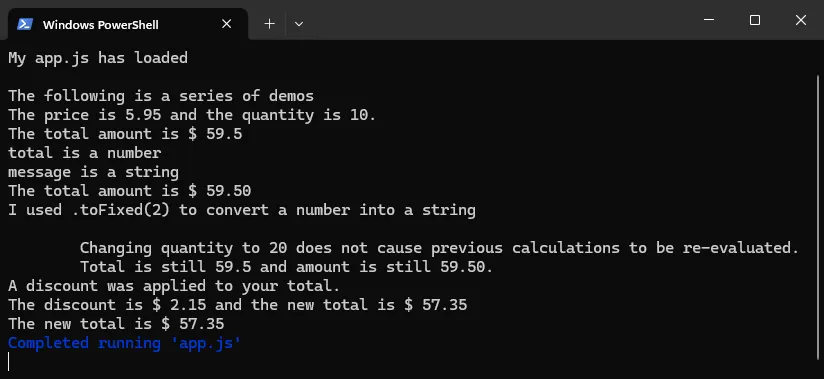
Answered: 0 / 0 (0%)